TreeControl
Tree structures with nodes loaded on demand, context actions and selection.
Adding the TreeControl in 10 steps
The tour shows how the control element can be integrated into an existing application, even after the fact.
TreeControl - Object
This tour demonstrates the use of the TreeControl. The control element produces a tree whose nodes can be expanded and collapsed. All the programmer has to provide is the display data - the data model - by implementing a simple interface.
The TreeControl offers the following features:
- The lines on the topmost level can be shown or hidden. Nodes and leaves can carry different images, held in an image map. Images are assigned to a tree node by regular expression.
- The control element keeps track of all the state it needs across several server round trips - which nodes are expanded, for instance.
- Check boxes can be shown in front of the tree entries. Selecting a node on a lower level automatically marks all the nodes above it.
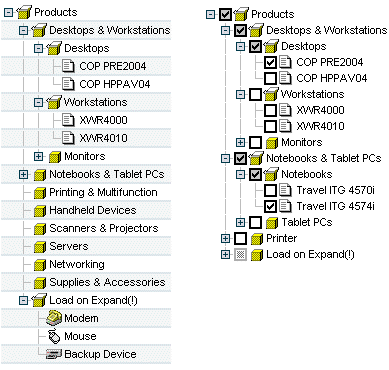
Using the TreeControl takes no more than the following steps:
- Choosing the design of the user interface
- Writing an action class
- Instantiating a TreeControl
- Providing the display data
- Configuring the tree within the JSP page
1. Registering the painter factory
The first step is to register the painter factory. It determines the design of the user interface. This can be done for the whole application in the init() method of the front controller servlet.1 Here we choose the standard design provided by the DefaultPainter.2
import javax.servlet.ServletExceptionimport org.apache.struts.action.ActionServlet;import com.cc.framework.ui.painter.PainterFactoryimport com.cc.framework.ui.painter.def.DefPainterFactory;import com.cc.framework.ui.painter.html.HtmlPainterFactory;public class MyFrontController extends ActionServlet { public void init() throws ServletException { super.init(); // Register all Painter Factories // with the preferred GUI-Layout // In this case we only use the Default-Layout. PainterFactory.registerApplicationPainter ( getServletContext(), DefPainterFactory.instance()); PainterFactory.registerApplicationPainter ( getServletContext(), HtmlPainterFactory.instance()); }}*1) If individual users are to choose between different interface designs, additional painter factories are registered in the user session. This is usually done in the LoginAction with PainterFactory.registerSessionPainter() in session scope.
*2) Further designs (painter factories) are part of the Professional Edition, or you develop your own.
2. Deriving the action class for the Struts adapter
Our tree is to show product groups and products, so the action class that loads and fills the TreeControl is called "ProductTreeBrowseAction". It is derived from the class FWAction, which wraps the Struts action class and adds the functions of the presentation framework. Instead of execute(), the doExecute() method is called. It receives the ActionContext, which wraps the access to further objects such as the request, session and response object.
import java.io.IOException;import javax.servlet.ServletException;import com.cc.framework.adapter.struts.FWActionimport com.cc.framework.adapter.struts.ActionContextpublic class ProductTreeBrowseAction extends FWAction { /** * @see com.cc.framework.adapter.struts.FWAction#doExecute(ActionContext) */ public void doExecute(ActionContext ctx) throws IOException, ServletException { // In the next chapter, we will instantiate // our TreeControls with the DisplayData }}3. Instantiating the TreeControl
The TreeControl is now instantiated within our action and filled with the display data. The data model is assigned to the control element through the setDataModel() method, which takes an object of type TreeGroupDataModel. That is an interface providing access to the display data of the tree; supplying an implementation of it is the job of the application developer.
import java.io.IOException;import javax.servlet.ServletException;import com.cc.framework.adapter.struts.ActionContext;import com.cc.framework.adapter.struts.FWAction;import com.cc.framework.ui.control.TreeControl;public class ProductTreeBrowseAction extends FWAction { /** * @see com.cc.framework.adapter.struts.FWAction#doExecute(ActionContext) */ public void doExecute(ActionContext ctx) throws IOException, ServletException { try { // first we get the Data for our Tree ProductGroupDsp data = DBProduct.fetch(); // secondly create the TreeControl and populate it // with the Data to display TreeControl products = new TreeControl(); products.setDataModel(data); // third put the TreeControl into the Session-Object. // Our Control is a statefull Object. ctx.session().setAttribute("products", products); } catch (Throwable t) { ctx.addGlobalError("Error: ", t); } // Display the Page with the Tree ctx.forwardToInput(); }}4. Providing the display data
The tree consists of group nodes and leaf nodes. Group nodes can hold further nodes in turn (composite pattern). Accordingly there is one interface per node type, TreeGroupDataModel and TreeNodeDataModel (TreeGroupDataModel extends TreeNodeDataModel). Together they make building the tree structure straightforward.
The root node is created first, and further groups or leaves are hooked in below it. The root node is then handed to the TreeControl as its data model.
// RootProductGroupDsp root = new ProductGroupDsp("0", "Products", "Root");ProductGroupDsp group = null;ProductGroupDsp subgroup = null;// First Group under the Root-Elementgroup = new ProductGroupDsp("1201", "Workstations & Monitors");subgroup = new ProductGroupDsp("2102", "Workstations");subgroup.addChild( new ProductDsp("3005", "XWR4000", "product description"));subgroup.addChild( new ProductDsp("3005", "XWR4010", "product description"));group.addChild(subgroup);subgroup = new ProductGroupDsp("2103", "Monitors");subgroup.addChild( new ProductDsp("3101", "ITV 2800") );subgroup.addChild( new ProductDsp("3102", "ITV 2820i") );subgroup.addChild( new ProductDsp("3103", "ITV 3220") );group.addChild(subgroup);root.addChild(group);// Secound Group under the Root-Elementgroup = new ProductGroupDsp("1204", "Printing & Multifunction");root.addChild(group);The following classes make up the models for this example:
- ProductGroupDsp
- ProductDsp
- ProductBaseDsp
5. Configuring the TreeControl within the JSP page
To use the TreeControl tag on a JSP page, the corresponding tag library has to be declared at the top of the page. The Common Controls are then available with the prefix <ctrl:tagname />. [The tag libraries also have to be listed in the deployment descriptor, the file WEB-INF/web.xml]
<%@ taglib uri="/WEB-INF/tlds/cc-controls.tld" prefix="ctrl" %><ctrl:tree id="prodtree1" name="products" action="sample201/productBrowse" root="true" linesAtRoot="true" labelProperty="name" imageProperty="type" expandMode="multiple" groupselect="true" checkboxes="false"/>That covers every step needed to use the TreeControl. Expanding and collapsing does not have to be implemented, the control element handles it. The same goes for the selection state of check boxes, which are switched on with the attribute checkboxes="true". The programmer can concentrate on the business logic and on providing the display data.
Professional Edition: with the attribute runat="client" the tree is generated as a JavaScript version and can then be expanded and collapsed without server round trips. This gain in comfort takes no changes at all in the application program.
Tour end
The TreeControl is quick and simple to integrate, and its standard behaviour can be overridden where needed. That allows special TreeControl objects which already wrap the access to particular business data and can be reused throughout an application project.
The configuration options in the JSP page make it quick to change how the TreeControl behaves. Alternative designs are a matter of adapting the existing painters, and several designs are supported side by side.
Features of the TreeControl:
- Expanding and collapsing nodes happens automatically.
- Keeps track of the state of optional check boxes.
- Various configuration options (showing or hiding the root node, changing the expand and collapse behaviour, hiding the connecting lines on the topmost level).
- Data below a group node can be loaded only when the group is opened, so the tree does not have to be known in full from the start - useful in combination with a database. When a node with an unknown number of children is expanded for the first time, the application receives an onExpandEx event.
- The design of the TreeControl can be defined in the JSP page or on the server side.
- Maps actions performed on the tree to callback methods in the action class (for example onCheck, onExpand, onCollapse, onExpandEx).
- Images in front of nodes and leaves are assigned by regular expression.
- Permission check at node level, so nodes are hidden automatically from users without the required permission (see the security documentation).
- The layout can be adapted to your own style guide (corporate identity) through a painter factory.
- Compact HTML code.
- Same look and feel in Microsoft® Internet Explorer > 5.x and Netscape™ Navigator > 7.x
Excursus: implementing a callback method
When a label is clicked, the TreeControl automatically raises an onDrilldown event, which the programmer can react to within the action class.
To react to that event in our example, we add a matching callback method to the ProductTreeBrowseAction. Since we do not want to implement the business logic at this point, we pass the event on to another action, ProductDisplayAction.
import java.io.IOException;import javax.servlet.ServletException;import com.cc.framework.adapter.struts.ActionContext;import com.cc.framework.adapter.struts.FWAction;import com.cc.framework.ui.control.ControlActionContext;import com.cc.framework.ui.control.TreeControl;import com.cc.sampleapp.common.Forwards;public class ProductTreeBrowseAction extends FWAction { /** * @see com.cc.framework.adapter.struts.FWAction#doExecute(ActionContext) */ public void doExecute(ActionContext ctx) throws IOException, ServletException { try { ProductGroupDsp data = DBProduct.fetch(); TreeControl products = new TreeControl(); products.setDataModel(data); ctx.session().setAttribute("products", products); } catch (Throwable t) { ctx.addGlobalError("Error: ", t); } // Display the Page with the Tree ctx.forwardToInput(); } // ------------------------------------------------ // Tree-Control Event Handler // ------------------------------------------------ /** * This Method is called when the TreeLabel is clicked * In our Example we switch to the DetailView, which shows * more Information about the node. * @param ctx ControlActionContext * @param key UniqueKey, as created in the Datamodel */ public void products_onDrilldown(ControlActionContext ctx, String key) { ctx.forwardByName(Forwards.DRILLDOWN, key); }}The name of the callback method is made up of the property name of the TreeControl - the name of the bean - and the event that occurred. Since the TreeControl was put into the session under the name "products", the callback method is called products_onDrilldown.
Excursus: using an image map
For open and closed nodes the TreeControl uses predefined images, which are easy to replace. Every entry in the tree can be given an image of its own, and one way to do that is an image map. It is declared outside the tree in the JSP page and assigned to the TreeControl through the attribute "imagemap".
<%@ taglib uri="/WEB-INF/tlds/cc-controls.tld" prefix="ctrl" %><%@ taglib uri="/WEB-INF/tlds/cc-utility.tld" prefix="util" %><util:imagemap name="imap_products"> <util:imagemapping rule="prodgroup.open" src="images/imgBoxOpen.gif" width="16" height="16"/> <util:imagemapping rule="prodgroup.closed" src="images/imgBoxClosed.gif" width="16" height="16"/> <util:imagemapping rule="product" src=" images/imgItem.gif" width="16" height="16"/></util:imagemap><ctrl:tree id="prodtree1" name="products" action="sample201/productBrowse" root="true" linesAtRoot="true" labelProperty="name" imageProperty="type" imagemap="imap_products" expandMode="multiple" groupselect="true" checkboxes="true"/>How it works: while the tree is drawn, the data model returns an expression through the method getType() for each entry, and that expression is matched against the image map. Where a rule matches, the corresponding image is drawn. For closed and open nodes the expression is automatically extended by the suffix ".closed" or ".open", so each state can use a different image. The rules themselves are regular expressions.
The method that returns the expression for the image to be drawn is named in the attribute "imageProperty". Our example uses the type property, which returns "prodgroup" for groups and "product" for individual leaves.
Alternative layouts
Other layouts are produced by implementing and registering painter factories of your own, as the following example shows:
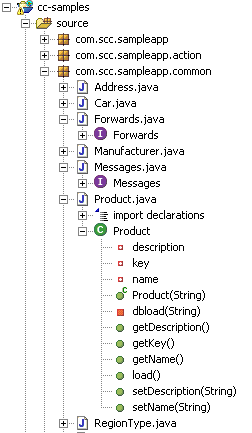
Classes used in the example
The classes used throughout the tour, in full.
Die Klasse ProductGroupDsp
public class ProductGroupDsp extends ProductBaseDsp implements TreeGroupDataModel { /** * ParentNode */ private TreeGroupDataModel parent = null; /** * ChildNodes */ private Vector children = new Vector(); // ------------------------------------------------ // Methods // ------------------------------------------------ /** * Constructor * @param key Unique Key for the Group * @param name Name of the Group * @param unknownChildren true if the Childs should be loaded later * false if the Childnodes exists */ public ProductGroupDsp(String key, String name) { super(); this.key = key; this.name = name; this.type = "prodgroup"; } /** * Constructor * @param key Unique Key for the Group * @param name Name of the Group * @param description description for the Group * @param unknownChildren true if the Childs should be loaded later * false if the Childnodes exists */ public ProductGroupDsp(String key, String name, String description) { super(); this.key = key; this.name = name; this.description = description; this.type = "prodgroup"; } /** * @see TreeGroupDataModel#getChild(int) */ public TreeNodeDataModel getChild(int index) { return (TreeNodeDataModel) children.elementAt(index); } /** * @see TreeGroupDataModel#addChild(TreeNodeDataModel) */ public void addChild(TreeNodeDataModel child) { children.add(child); child.setParent(this); } /** * Returns the Number of ChildNodes * -1 = The Number of ChildNodes is unknown. * When the Node opens an onExpandEx Event is generated * and the Childs can be loaded at runtime * 0 = This Node has no ChildNodes * >0 = This Node has ChildNodes * * @see TreeGroupDataModel#size() */ public int size() { return children.size(); } /** * @see TreeNodeDataModel#getParent() */ public TreeGroupDataModel getParent() { return parent; } /** * @see TreeNodeDataModel#setParent(TreeGroupDataModel) */ public void setParent(TreeGroupDataModel parent) { this.parent = parent; } /** * @see TreeNodeDataModel#getParentKey() */ public String getParentKey() { return parent.getUniqueKey(); } /** * @see TreeNodeDataModel#getUniqueKey() */ public String getUniqueKey() { return this.key; }}Die Klasse ProductDsp
public class ProductDsp extends ProductBaseDsp implements TreeNodeDataModel { /** * ParentNode */ private TreeGroupDataModel parent = null; /** * Constructor * @param key Unique Productkey * @param name Productname */ public ProductDsp(String key, String name) { super(); this.key = key; this.name = name; this.type = "product"; } /** * Constructor * @param key Unique Productkey * @param name Productname * @param description Product description */ public ProductDsp(String key, String name, String description) { super(); this.key = key; this.name = name; this.description = description; this.type = "product"; } public void setParent(TreeGroupDataModel parent) { this.parent = parent; } public TreeGroupDataModel getParent() { return parent; } public String getParentKey() { return parent.getUniqueKey(); } public String getUniqueKey() { return this.key; }}Die Klasse ProductBaseDsp
public class ProductBaseDsp { /** * ProductKey */ protected String key = ""; /** * Name of the Product */ protected String name = ""; /** * Description for the Product */ protected String description = ""; /** * Type for the Node */ protected String type = ""; /** * Constructor */ public ProductBaseDsp() { super(); } public String getName() { return name; } public String getDescription() { return description; } public String getType() { return type; }}Ready-made configurations to take over
Screenshot, configuration and the matching JSP code.

Configuration
- Display of the root node (root="true").
- Display of the connecting lines at the uppermost visible level (linesAtRoot="true").
- No display of checkboxes before groups and leaves (checkboxes="false").
- Use of the default images for opened, closed nodes and leaves.
- By specifying expandMode="multiple", exploded nodes are not closed when additional other nodes are exploded. With the setting expandMode="single", only one node is shown exploded, i.e. all other nodes are always automatically closed.
- The instance of the ListControl is searched for under its name in the Scope (Session/Request). If the property-attribute is used, the Control is determined from the Formbean.
<ctrl:tree id="prod1" name="products" action="sample201/productBrowse" root="true" linesAtRoot="true" labelProperty="name" imageProperty="type" expandMode="multiple" groupselect="true" checkboxes="false"/>
Configuration
- See Configuration example A.
- Declaration of an ImageMap with user-specific images for groups and leaves. For this purpose, the ImageMap is referenced within the tree-column using the attribute "imagemap" (imagemap="im_products). Every entry in the tree returns an expression via the method specified in the imageProperty, which is compared with the ImageMap. The corresponding image is used if there is a tally.
<util:imagemap name="im_products"> <util:imagemapping rule="group.open" src="app/images/imgBoxOpen.gif" width="16" height="16"/> <util:imagemapping rule="group.closed" src="app/images/imgBoxClosed.gif" width="16" height="16"/> <util:imagemapping rule="single" src="app/images/imgItem.gif" width="16" height="16"/> <util:imagemapping rule="modem" src="app/images/tree/modem.gif" width="16" height="16"/> <util:imagemapping rule="mouse" src="app/images/tree/mouse.gif" width="16" height="16"/> <util:imagemapping rule="backup" src="app/images/tree/backup.gif" width="16" height="16"/></util:imagemap><ctrl:tree id="prod2" name="hardware" action="sample202/hardwareBrowse" root="true" linesAtRoot="true" labelProperty="name" imageProperty="type" imagemap="im_products" expandMode="multiple" groupselect="true" checkboxes="false"/>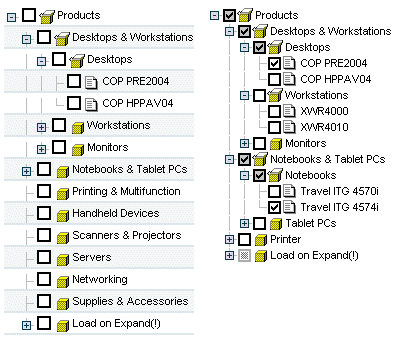
Configuration
- See Configuration example A.
- Use of checkboxes (checkboxes="true").
- Only one node is shown exploded (expandMode="single").
<util:imagemap name="im_products"> <util:imagemapping rule="group.open" src="app/images/imgBoxOpen.gif" width="16" height="16"/> <util:imagemapping rule="group.closed" src="app/images/imgBoxClosed.gif" width="16" height="16"/> <util:imagemapping rule="single" src="app/images/imgItem.gif" width="16" height="16"/></util:imagemap><ctrl:tree id="prod2" name="hardware" action="sample202/hardwareBrowse" root="true" linesAtRoot="true" labelProperty="name" imageProperty="type" imagemap="im_products" expandMode="single" groupselect="true" checkboxes="true"/>
Configuration
- Suppressed root node (root="false").
- For more settings, see Configuration example A.
<ctrl:tree id="prod1" name="products" action="sample201/productBrowse" root="false" linesAtRoot="true" labelProperty="name" imageProperty="type" expandMode="multiple" groupselect="true" checkboxes="false"/>
Configuration
- At the level of the root node, no opening or closing icon is drawn (linesAtRoot="false").
- The instance of the TreeControls is sought in the Formbean assigned to the action. Therefore, instead of the name attrribute, the property-attribute is specified.
- For more settings, see Configuration example A.
<html:form action="/sample201/productBrowse"><ctrl:tree id="prod1" property="products" root="true" linesAtRoot="false" labelProperty="name" imageProperty="type" expandMode="multiple" groupselect="true" checkboxes="false"/></html:form>