ListControl
Lists with paging, drilldown, edit and delete columns as well as custom action columns.
Adding the ListControl in 9 steps
The tour shows how the control element can be integrated into an existing application, even after the fact.
ListControl - Object
This tour demonstrates the use of the ListControl. The control element produces a table whose structure and appearance are freely configurable. Paging, sorting within the columns and updating the data model when the check column is clicked do not have to be implemented - the ListControl already covers those basics.
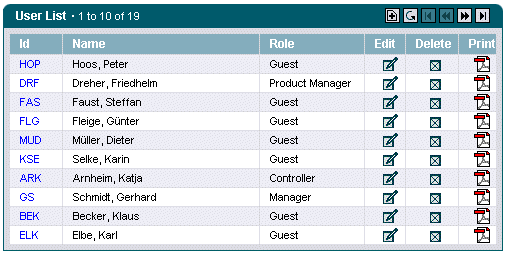
Using the ListControl takes the following steps:
- Choosing the design of the user interface
- Writing an action class
- Instantiating a ListControl
- Providing the display data
- Configuring the table within the JSP page
1. Registering the painter factory
The first step is to register the painter factory. It determines the design of the user interface. This can be done for the whole application in the init() method of the front controller servlet.1 Here we choose the standard design provided by the DefaultPainter.2
import javax.servlet.ServletExceptionimport org.apache.struts.action.ActionServlet;import com.cc.framework.ui.painter.PainterFactoryimport com.cc.framework.ui.painter.def.DefPainterFactory;import com.cc.framework.ui.painter.html.HtmlPainterFactory;public class MyFrontController extends ActionServlet { public void init() throws ServletException { super.init(); // Register all Painter Factories with the preferred GUI-Design // In this case we use the Default-Design. PainterFactory.registerApplicationPainter ( getServletContext (), DefPainterFactory.instance()); PainterFactory.registerApplicationPainter ( getServletContext(), HtmlPainterFactory.instance()); }}*1) If individual users are to choose between different interface designs, additional painter factories are registered in the user session. This is usually done in the LoginAction with PainterFactory.registerSessionPainter() in session scope.
*2) Further designs (painter factories) are part of the Professional Edition, or you develop your own.
2. Deriving the action class for the Struts adapter
Our table is to show information about the users of the system, so the action class that loads and fills the ListControl is called "UserBrowseAction". It is derived from the class FWAction, which wraps the Struts action class and adds the functions of the presentation framework. Instead of execute(), the doExecute() method is called. It receives the ActionContext, which wraps the access to further objects such as the request, session and response object.
import java.io.IOException;import javax.servlet.ServletException;import com.cc.framework.adapter.struts.FWActionimport com.cc.framework.adapter.struts.ActionContextpublic class UserBrowseAction extends FWAction { /** * @see com.cc.framework.adapter.struts.FWAction#doExecute(ActionContext) */ public void doExecute(ActionContext ctx) throws IOException, ServletException { // In the next chapter, we will instantiate // our ListControls with the DisplayData }}3. Instantiating the ListControl
The ListControl is now instantiated within the UserBrowseAction and filled with the data to be shown. Its data model is assigned to the control element through the setDataModel() method, which takes a ListDataModel as its argument. That is a simple interface, implemented here by the class UserDisplayList, which provides the display data.
import java.io.IOException;import javax.servlet.ServletException;import com.cc.framework.adapter.struts.ActionContext;import com.cc.framework.adapter.struts.FWAction;import com.cc.framework.ui.control.SimpleListControl;import com.cc.sampleapp.common.Messages;import com.cc.sampleapp.presentation.dsp.UserDisplayList;public class UserBrowseAction extends FWAction { /** * @see com.cc.framework.adapter.struts.FWAction#doExecute(ActionContext) */ public void doExecute(ActionContext ctx) throws IOException, ServletException { try { // Get the Displaydata for our List UserDisplayList dspData = DBUser.fetch(); // Create the ListControl and populate it. // with the Data to be displayed SimpleListControl userList = new SimpleListControl(); userList.setDataModel(dspData); // Put the ListControl into the Session-Object. // Our ListControl is a statefull Object. ctx.session().setAttribute("users", userList); } catch (Throwable t) { ctx. AddGlobalError(Messages.ERROR, t); } // Display the Page with the UserList ctx.forwardToInput(); }}4. Providing the display data
The class that manages the display data for the ListControl only has to implement the interface ListDataModel. It adds methods for querying the row objects within the list to an existing class, and is kept simple accordingly.
import com.cc.framework.ui.model.ListDataModel;/** * Collection with UserDsp-Objects */public class UserDisplayList implements ListDataModel { private UserDsp[] data = new UserDsp[0]; public UserDisplayList(UserDsp[] elements) { this.data = elements; } public Object getElementAt(int index) { return data[index]; } public int size() { return data.length; } /** * Unique Key for each Row (Object). * In this Example our Key only contains the UserId. */ public String getUniqueKey(int index) { return data[index].getUserId(); }}import com.cc.framework.common.DisplayObject;import com.cc.sampleapp.common.UserRole;/** * User DisplayObject (ViewHelper) */public class UserDsp implements DisplayObject { private String userId = ""; private String firstName = ""; private String lastName = ""; private UserRole role = UserRole.NONE; public UserDsp(String userId, String firstName, String lastName, UserRole role) { super(); this.userId = userId; this.firstName = firstName; this.lastName = lastName; this.role = role; } public UserRole getRole() { return role; } public String getUserId() { return userId; } public String getLastName() { return lastName; } public String getName() { return firstName + ", " + lastName; }}5. Configuring the ListControl within the JSP page
To use the ListControl tag on a JSP page, the corresponding tag library has to be declared at the top of the page. The Common Controls are then available with the prefix <ctrl:tagname />. [The tag libraries also have to be listed in the deployment descriptor, the file WEB-INF/web.xml]
<%@ taglib uri="/WEB-INF/tlds/cc-controls.tld" prefix="ctrl" %><ctrl:list id="userlist1" action="sample101/userBrowse" name="users" title="User List" width="500" rows="15" refreshButton="true" createButton="true"> <ctrl:columndrilldown title="Id" property="userId" width="65"/> <ctrl:columntext title="Name" property="name" width="350"/> <ctrl:columntext title="Role" property="role.value" width="150"/> <ctrl:columnedit title="Edit"/> <ctrl:columndelete title="Delete"/></ctrl:list>That covers every step needed to use the ListControl.
- Paging does not have to be implemented, the ListControl brings it along.
- In the JSP page we specified that the ListControl is to draw at most 15 rows. If there are more, the buttons for paging forwards and backwards appear automatically.
- Clicking the forward button triggers a server round trip and shows the next page. The presentation framework takes care of the update; no additional code is needed.
Tour end
The ListControl is quick and simple to integrate, yet flexible enough for special requirements: its standard behaviour can be overridden. That is how data is loaded dynamically, or how you build your own ListControl classes that already wrap the access to a particular table.
New columns are added in the configuration within the JSP page, and they can be shown or hidden depending on the user's permissions. The HTML code is produced by a painter, so other layouts are a matter of adapting the painter - and several layouts can be used side by side.
Features of the ListControl:
- Paging is built in, no extra programming needed. The buttons are disabled and enabled automatically at the first and last page.
- Column types: drilldown, text, check box, image, link, button, select, add, edit, delete, control.
- The check column supports the modes "single" and "multiple".
- Buttons are configurable and can be shown or hidden individually.
- The design of the ListControl can be defined in the JSP page or on the server side.
- Maps actions performed on the table to callback methods in the action class (for example onDrilldown, onSort, onEdit, onDelete, onRefresh, onCheck).
- JavaScript event handlers can be attached to columns.
- The columns shown depend on the user's permissions.
- The standard behaviour can be overridden.
- The layout can be adapted to your own style guide (corporate identity) through a painter factory.
- Compact HTML code.
- Same look and feel in Microsoft® Internet Explorer > 5.x and Netscape™ Navigator > 7.x
Excursus: implementing a callback method
For the user id the table uses a special column, the drilldown column. It renders a hyperlink which, in our application, branches to the detail view. The data is not to be edited in this view - that is what the edit button is for.
To react to that event, we add a matching callback method to our UserBrowseAction. Since we do not want to implement the business logic at this point, we pass the event on to another action, UserDisplayAction, which loads the details and calls the JSP page that shows them.
import java.io.IOException;import javax.servlet.ServletException;import com.cc.framework.adapter.struts.ActionContext;import com.cc.framework.adapter.struts.FWAction;import com.cc.framework.ui.control.ControlActionContext;import com.cc.framework.ui.control.SimpleListControl;import com.cc.sampleapp.common.Forwards;import com.cc.sampleapp.common.Messages;import com.cc.sampleapp.dbaccess.DBUser;import com.cc.sampleapp.presentation.dsp.UserDisplayList;public class UserBrowseAction extends FWAction { /** * @see com.cc.framework.adapter.struts.FWAction#doExecute(ActionContext) */ public void doExecute(ActionContext ctx) throws IOException, ServletException { try { UserDisplayList dspData = DBUser.fetch(); SimpleListControl userList = new SimpleListControl(); userList.setDataModel(dspData); ctx.session().setAttribute("users", userList); } catch (Throwable t) { ctx.addGlobalError(Messages.ERROR, t); } // Display the Page with the UserList ctx.forwardToInput(); } /** * This Method is called when the Drilldown-Column is clicked * In our Example we switch to the DetailView, which shows * more Information about the User. It's a readonly View. * @param ctx ControlActionContext * @param key UniqueKey, as it was defined in the UserDisplayList * to identify the Row. In this Example the UserId. */ public void users_onDrilldown(ControlActionContext ctx, String key) { ctx.forwardByName(Forwards.DRILLDOWN, key); }}The name of the callback method is always made up of the name of the bean, the prefix _on and the event that occurred. The name of the bean is determined as follows:
- If the ListControl is handed over directly, for instance within the session as above --> the bean name is the name of the attribute the bean was stored under.
- If the ListControl sits inside an action form --> the bean name is the name of the property the instance of the control is held in within that form.
In our example the instance of the control element is kept in the session, so that it retains its internal state (current page, display data) across several server round trips. The callback method to be implemented therefore has to be called users_onDrilldown. It receives the ControlActionContext, which wraps the access to the session, request and response object among others. A further parameter carries the unique key of the row, as specified within the display list by the method getUniqueKey(int index). Our UserDisplayList returns the user id here.
Alternative layouts
Other layouts are produced by implementing and registering painter factories of your own. Here are a few examples from customer projects.
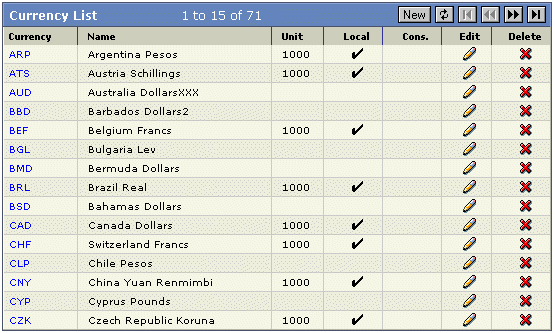
Ready-made configurations to take over
Screenshot, configuration and the matching JSP code.
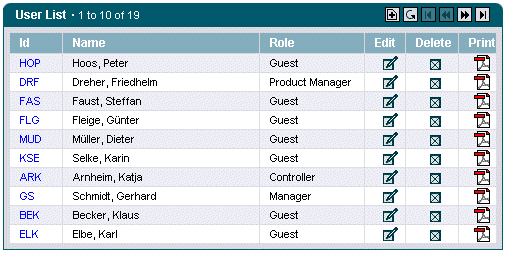
Configuration
- List with Add button (for adding new records).
- List with Refresh button (for updating the list).
- Display of maximum 10 lines per page.
- Drilldown column (for going to the detail view of the data record).
- Two text columns.
- Edit column (for editing the data record).
- Delete column (for deleting the data record).
- Image column (for editing an image and triggering a user-specific action).
- The instance of the ListControl is searched for under the name in the Scope (Session/Request). If the property-attribute is used, the Control is determined from the Formbean.
<ctrl:list id="userlist1" action="sample101/userBrowse" name="users" title="User List" width="500" rows="10" refreshButton="true" createButton="true"> <ctrl:columndrilldown title="Id" property="userId" width="65"/> <ctrl:columntext title="Name" property="name" width="350"/> <ctrl:columntext title="Role" property="role.value" width="150"/> <ctrl:columnedit title="Edit"/> <ctrl:columndelete title="Delete" onclick="return userlist1_onBeforServerSend();"/> <ctrl:columnbutton title="Print" property="print" image="app/images/imgPDF.gif" align="center"/></ctrl:list>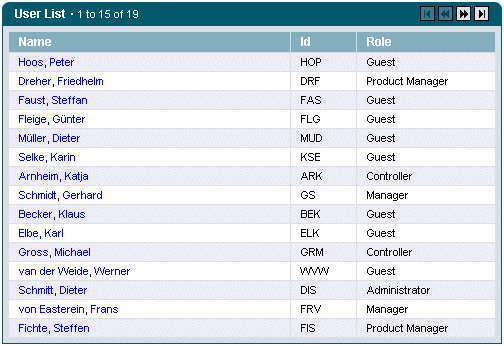
Configuration
- List without Refresh and Add button.
- Display of maximum 15 lines per page.
- Drilldown column (for going to the detail view of the data record).
- Two text columns.
<ctrl:list id="userlist1" action="sample101/userBrowse" name="users" title="User List" width="500" rows="15"> <ctrl:columndrilldown title="Name" property="name" width="350"/> <ctrl:columntext title="Id" property="userId" width="65"/> <ctrl:columntext title="Role" property="role.value" width="150"/></ctrl:list>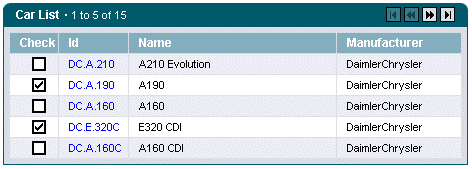
Configuration
- List without Refresh and Add button .
- Display of maximum 5 lines per page.
- CheckBox-column for selection of lines. Several rows can be marked simultaneously be specifying the Select-Mode (here, multiple). Specifying "single" allows the selection of only one line or row.
- Drilldown column (for going to the detail view of the data record).
- Two text columns.
<ctrl:list id="carlist1" action="sample102/carBrowse" name="cars" title="Car List" width="465" rows="5" select="multiple"> <ctrl:columncheck title="Check" property="checkState"/> <ctrl:columndrilldown title="Id" property="id" width="65"/> <ctrl:columntext title="Name" property="name" width="350"/> <ctrl:columntext title="Manufacturer" property="manufacturerName" width="150"/></ctrl:list>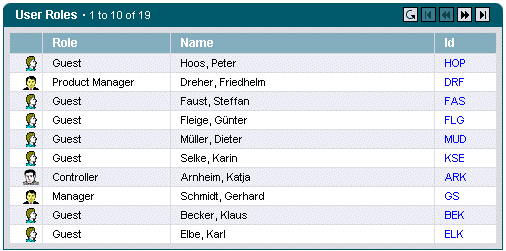
Configuration
- Refresh-button.
- Authorization-dependent display of the Add-button. In the example, the user does not have any rights. Therefore, the button is not enabled.
- Display of maximum 10 lines per page.
- Use of an ImageMap in the first column.
- Image column with assigned ImageMap.
- Two text columns.
- Drilldown column (for going to the detail view of the data record).
- Authorization-dependent display of the edit column (for editing the data record) In the example, the user does not have any rights. Therefore, the functionality is not offered.
- Authorization-dependent display of the Delete column (for deleting the data record). In the example, the user does not have any rights. Therefore, the functionality is not offered.
<util:imagemap name="im_user"> <util:imagemapping rule="user" src="images/user.gif"/> <util:imagemapping rule="admin" src="images/administrator.gif"/> <util:imagemapping rule="manager" src="images/manager.gif"/> <util:imagemapping rule="controller" src="images/controller.gif"/></util:imagemap><ctrl:list id="userlist1" action="sample103/userRoleBrowse" name="users" title="User Roles" width="500" rows="10" refreshButton="true" createButton="#admin"> <ctrl:columnimage title="" property="roleImg" width="25" imagemap="im_user" align="center"/> <ctrl:columntext title="Role" property="role.value" width="150"/> <ctrl:columntext title="Name" property="name" width="350"/> <ctrl:columndrilldown title="Id" property="userId" width="65"/> <ctrl:columnedit title="Edit" permission="#adim"/> <ctrl:columndelete title="Delete" permission="#adim, #manager"/></ctrl:list>